FiveM Vehicle Debadge Tool
Remove unwanted logos and badges from vehicle geometry, clean branded textures, and continue your finished vehicle into a FiveM resource workflow.
Mesh Debadge
Select and remove unwanted logos and badges directly from the actual vehicle geometry while keeping the rest of your vehicle asset intact.
Texture Debadge
Remove unwanted branding directly from your vehicle textures with the built-in YTD texture studio.
SP TO FiveM
Continue your cleaned vehicle into a ready-to-build FiveM resource workflow.
Stop switching
between tools.
EVERYTHING YOU NEED TO DEBADGE YOUR VEHICLE.
The hard part isn't removing it.
It's selecting it.
One small badge can mean fighting dense mesh, tiny pieces and unwanted selections. GTC keeps the job focused.
Stop fighting tiny pieces.
Select what you actually want without spending your time chasing every little piece of the badge.
See what GTC can do.
Follow the real workflow inside GTC Vehicle Debadge Tool — from importing your vehicle to removing geometry, cleaning textures and continuing into FiveM.
Import Your Vehicle
Open your vehicle directly inside GTC.
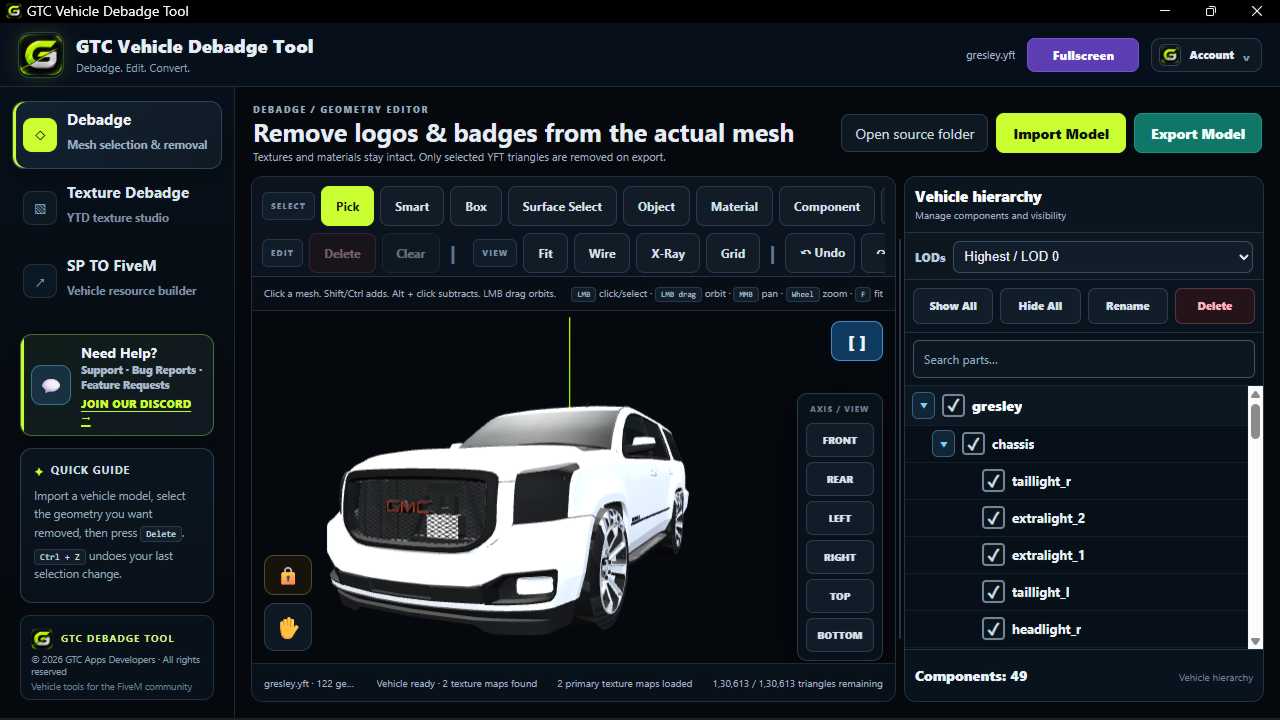
Import YFT files and get straight into the editor. GTC can automatically search nearby YTD texture dictionaries and apply matching maps.
Smart Mesh Debadge
Remove physical logos and badges from the actual mesh.
Select the geometry you want to remove using Smart Select, Pick, Box, Surface Select, Material or Component tools. Delete unwanted geometry while keeping the rest of the vehicle intact.
Advanced Surface Selection
Get precise control over complex vehicle geometry.
Surface Select helps isolate connected areas of geometry so you can target the badge or logo you actually want to remove instead of manually working through individual triangles.
Automatic Logo Texture Detection
Import your YTD and quickly find textures that may contain branding.
Import a YTD texture dictionary directly into GTC. The tool can automatically identify possible logo or branding textures inside it, helping you find the texture you need without manually searching through every map.
Texture Debadge
Remove unwanted branding without opening Photoshop.
Use the built-in Texture Debadge tools to clean logos and unwanted branding directly inside GTC. No separate image editing software is needed just to clean your vehicle textures.
SP TO FiveM
Continue your edited vehicle into a FiveM resource workflow.
Once your vehicle is edited, use SP TO FiveM to continue the conversion workflow for FiveM. Keep the process connected instead of moving into another conversion application.
Freedom to debadge any vehicle.
Stop paying someone every time you want a vehicle cleaned.
OUTSOURCE
Pay again every time you need another vehicle debadged.
ONE TOOL. ONE WORKFLOW.
Handle your own vehicles whenever you need.
Choose your setup.
1 License
The complete GTC Vehicle Debadge Tool for one authorized PC.
2 Licenses
Full access for two authorized PCs.
3 Licenses
The best bundle for creators, small studios and teams.
Contact Sales
Need more than 3 licenses? Get a custom package for your studio, team or business.
Questions? We've got answers.
Everything you need to know about editing, debadging, converting and working with your vehicles.
01 Is GTC Vehicle Studio easy to use? +
02 Can I edit LODs as well? +
03 Can I edit wheel logos without breaking the vehicle? +
04 Can I convert a vehicle to FiveM? +
05 Do I need to manually edit polygons and vertices? +
06 Can I edit more than just vehicle badges? +
07 Will editing one part break my vehicle? +
08 Can I edit vehicle textures and .ytd files? +
09 Can I use GTC without 3D modeling experience? +
10 Can I edit .yft vehicle files? +
11 Can I edit locked .yft files? +
12 Is GTC made for FiveM vehicle creators? +
13 How many PCs can I use my license on? +
14 Can I share my license with someone else? +
15 Where can I get support? +
Join the GTC Mods Discord →